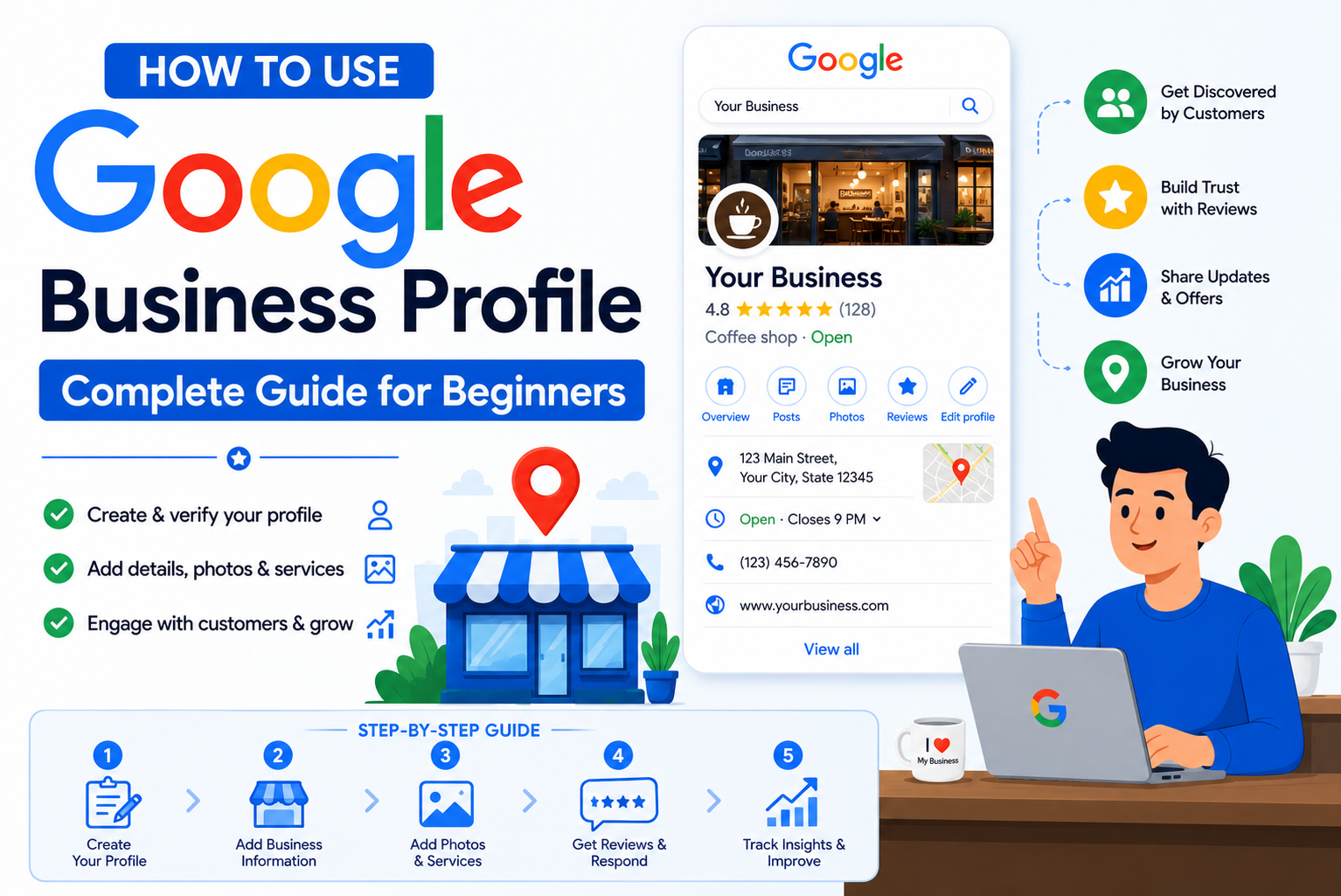
To use a Google Business Profile, start by creating and verifying your business listing, completing every profile section, managing reviews, publishing updates, and optimizing your presence to improve visibility on Google Search and Google Maps. A well-optimized Google Business Profile helps businesses attract more customers, generate calls and website visits, build trust through reviews, and strengthen local SEO performance.
If you want customers to find your business on Google Search and Google Maps, setting up a Google Business Profile is one of the most important steps you can take. Previously known as Google My Business, this free tool allows business owners to manage their online presence, update business information, collect reviews, and interact with customers directly from Google.
In this guide, you’ll learn how to create a Google Business Profile, verify ownership, optimize every section, manage reviews, analyze performance metrics, avoid common mistakes, and maximize your local SEO results.
What Is Google Business Profile?
Google Business Profile is a free business listing platform that allows companies to manage how they appear across Google Search and Google Maps. When users search for a business name, service, or location, Google may display a Business Profile containing:
- Business name
- Address
- Phone number
- Website
- Operating hours
- Customer reviews
- Photos
- Products and services
- Questions and answers
Many people still refer to it as Google My Business, but Google officially rebranded the platform as Google Business Profile.
If you want to learn more about local SEO, this blog is perfect for you: https://seoserviceshub.co.uk/what-is-google-my-business-a-complete-guide-for-details/
How to Create a Google Business Profile?
The process of creating a Google Business Profile, verifying ownership, accessing the dashboard, optimizing categories and business information, managing reviews, using messaging and Q&A features, tracking insights, avoiding suspensions, and maximizing local search visibility is discussed below.
Step 1: Sign in to Your Google Business Account
Visit the Google Business Profile platform and sign in using your Google Business account. If you already manage a listing, you’ll be taken to your Google Business Profile dashboard.
Step 2: Enter Your Business Information
Provide accurate details, including:
- Business name
- Primary business category
- Business address
- Service area (if applicable)
- Phone number
- Website URL
Accuracy is critical because Google uses this information to determine relevance in local search results.
Step 3: Verify Your Business
Google requires verification before your profile becomes fully visible.
Google Business Profile Verification Methods
In the past, Google primarily relied on postcard verification, but today, Google offers several verification methods depending on the business type and eligibility.
1. Postcard Verification
A verification code is mailed to your business address.
2. Phone Verification
Eligible businesses may receive an instant verification call.
3. Email Verification
Some businesses can verify ownership through email.
4. Video Recording Verification
Google may request a short video showing:
- Business signage
- Equipment
- Workspace
- Proof of ownership
5. Live Video Verification
Certain businesses must complete a live video call with a Google representative.
6. Instant Verification
Businesses already verified through Google Search Console may qualify for immediate verification.
How to Access the Google Business Profile Dashboard?
Once verified, you can manage your profile through:
- Google Search
- Google Maps
- Business Profile Manager
Simply search your business name while logged into the account that owns the profile.
The Google Business Profile dashboard allows you to:
- Edit business details
- Respond to reviews
- Upload photos
- View analytics
- Publish updates
- Manage users
Choosing the Right Business Categories
Your primary category is one of the strongest local ranking signals.
Primary Category
Choose the category that best describes your main service.
For example:
- Dentist
- Roofing Contractor
- Italian Restaurant
- Personal Injury Attorney
Secondary Categories
Google allows multiple secondary categories. These help your profile appear for additional searches related to your services. Avoid adding irrelevant categories because they can dilute your profile’s relevance.
How to Optimize Your Google Business Profile?
Creating a profile is only the first step. Optimization is what helps businesses rank higher. Many businesses invest in professional Google Business Profile Services to ensure their listing is fully optimized for visibility, engagement, and conversions.
Complete Every Section
Fill out:
- Business description
- Hours of operation
- Services
- Products
- Website URL
- Appointment links
- Attributes
Profiles with complete information generally perform better than incomplete listings.
Write a Strong Business Description
You have up to 750 characters to explain:
- What you do
- Who you serve
- What makes your business unique
Focus on helping customers rather than stuffing keywords.
Adding Products and Services
Many business owners don’t understand the difference between these sections.
Services Section
Best for:
- Contractors
- Consultants
- Lawyers
- Plumbers
- Service-area businesses
Include detailed service descriptions that explain what you offer.
Products Section
Best for:
- Retail stores
- Restaurants
- E-commerce businesses with local locations
Products remain visible longer than posts and can appear directly within search results.
Upload Photos That Attract Customers
Photos are one of the most influential elements of your profile.
Include:
- Logo
- Cover photo
- Exterior images
- Interior images
- Team photos
- Product photos
- Completed projects
Adding fresh photos regularly signals that your business is active and engaged.
How to Use the Google Business Profile Q&A Section?
The Questions & Answers feature is often overlooked. You can proactively add common customer questions, such as the following:
- Do you offer free consultations?
- Do you provide emergency services?
- What payment methods do you accept?
Providing answers helps customers and adds useful information to your profile.
Using Google Business Profile Messaging Feature for Customer Support
Messaging allows customers to contact your business directly.
Benefits of Messaging
- Faster customer communication
- Increased lead generation
- Improved customer experience
Best Practices
- Enable notifications
- Respond quickly
- Set automated greetings
- Monitor conversations regularly
Google may display your average response time publicly.
Managing Reviews is Easier with Google Business Profile
Customer reviews play a major role in both trust and rankings.
Request Reviews Consistently
Ask satisfied customers to leave honest feedback after a completed service or purchase.
Respond to Every Review
Thank customers for positive reviews and professionally address concerns in negative reviews. Consistent responses demonstrate engagement and customer care.
Understanding Google Business Profile Insights
Many business owners look at analytics without understanding what the numbers mean. These insights can also support broader SEO Services by revealing how customers search for products and services in your market.
Search Queries
Shows the terms customers used to find your profile. Use these keywords in your website content and services.
Search Views vs. Map Views
This helps you understand whether users discover you through Search or Google Maps.
Direction Requests
Indicates how many users wanted directions to your location.
Phone Calls
Tracks calls generated directly from your profile.
Website Clicks
Measures traffic sent from Google Business Profile to your website.
Photo Views
Compare your photo engagement against competitors to identify improvement opportunities.
How to Manage Multiple Owners and Managers?
Many businesses need multiple people managing the profile.
- Owner: Has full control over the profile.
- Manager: Can update information and respond to reviews but has limited ownership permissions.
- Site Manager: Can perform daily tasks without access to sensitive account settings.
For agencies, manager-level access is typically the safest option.
Handling Google-Suggested Edits is More Than Easy
Many business owners don’t realize that users can suggest changes to their profile.
Common edits include:
- Business hours
- Phone numbers
- Categories
- Addresses
Regularly review your profile to ensure information remains accurate.
Special Hours and Holiday Hours can Also be Managed on the Google Business Profile
Updating hours is especially important during holidays and special events.
Special Hours
Use this option for:
- Public holidays
- Seasonal schedules
- One-time closures
Temporary Closures
Only use this when your business is temporarily unable to operate. Incorrectly using this feature can impact visibility.
Why Do Google Business Profiles Get Suspended?
One of the most frustrating issues for business owners is profile suspension.
Common Reasons for Suspension:
- Keyword stuffing in the business name
- Using virtual office addresses
- Duplicate listings
- Incorrect categories
- Violating Google’s guidelines
Types of suspensions are the following:
Soft Suspension
The profile remains visible but requires re-verification.
Hard Suspension
The profile may disappear from Google Maps entirely.
How to Fix a Suspension?
To fix a suspension, start by:
- Review Google’s guidelines.
- Correct inaccurate information.
- Gather supporting documents.
- Submit a reinstatement request.
- Wait for Google’s review process.
Preventing suspension is much easier than recovering from one.
Google Business Profile and AI Search Engine Optimization (AI SEO)
Google’s AI Overviews increasingly use Business Profile data when generating local recommendations. Businesses that combine a well-managed profile with strong Local SEO strategies are more likely to appear in AI-generated search experiences.
As AI-powered search continues to grow, maintaining an accurate and active Google Business Profile will become even more important.
Final Thoughts
Google Business Profile remains one of the most powerful free marketing tools available to local businesses. From creating your profile and completing verification to managing reviews, tracking analytics, and optimizing categories, every improvement helps strengthen your visibility in local search results.
By keeping your profile accurate, active, and customer-focused, you can attract more calls, website visits, direction requests, and ultimately more customers from Google Search and Google Maps.